

BLD-102-1.2
Your First 10 Minutes: Saying Hi and Getting Something Done
Verified current as of November 14, 2026
Enough theory — let's open it up and feel how this works. You don't need to understand any of the technical bits yet. You just need to see the rhythm.
Getting started (one time): All you need is a paid Claude account (Pro or above, or a Team or Enterprise seat). Claude Code isn't on the Free plan. Then pick the doorway that suits you:
- Easiest for non-developers: the Claude desktop app. Download it from claude.ai/download, sign in, and click the Code tab. Claude Code is built in; there's nothing else to install.
- In the browser: claude.ai/code runs Claude Code in the cloud on projects stored in GitHub.
- In a terminal, with one line. On a Mac, Linux, or WSL:
curl -fsSL https://claude.ai/install.sh | bash. On Windows PowerShell:irm https://claude.ai/install.ps1 | iex. Open a new terminal window, go to a project folder, typeclaude, and sign in when it asks. - Inside a code editor: the Claude Code extension for VS Code (or a JetBrains IDE) adds it as a panel next to your files.
When it's ready, you'll see a prompt box waiting for you. That's your invitation to start typing.
Where Claude Code lives: whichever doorway you pick, it's the same Claude Code. Think of it as a chat box that happens to be wired into a real project folder. You type a request; it works on the real files.
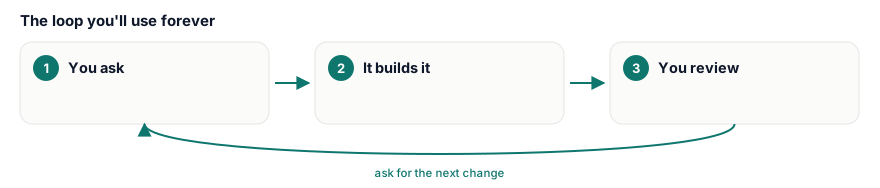
The loop you'll use forever:
- You ask in plain English — "Create a simple one-page site that says who we are."
- It proposes or just does the work — creating files, writing the code.
- You review the result and ask for the next change.
That's it. Ask → review → repeat. You're the director; it's the crew.
A quick note on control: Claude Code can act on its own — sometimes it'll show you a plan and wait for your okay, and sometimes it'll just go ahead and make the change. Don't be alarmed when it simply does things; that's normal. There's a setting (the permission mode) that controls how often it checks with you first. As of November 2026 the main choices are:
- Manual: asks before every edit and command. The best setting while you're learning.
- Plan: looks around and writes a plan, but changes nothing until you approve it.
- Edit automatically: makes file edits without asking, still asks before other commands.
- Auto: works on its own while a separate safety check blocks risky actions. Recent versions start in this mode in the terminal and VS Code.
In the desktop app you'll find a mode selector just under the prompt box; in a terminal, press Shift+Tab to cycle through modes. While you're learning, choose Manual or Plan so you can see every step before it happens.
Your first win: ask it to make something tiny and real — a short "About Us" page, a list, a simple calculator. Watch it go from your sentence to an actual thing in seconds.
The upgrade: your first request, done well
A one-line request works, but a few extra sentences make the first result much closer to what you pictured, and keep you in control.
make a website
I'm not a developer. In this empty folder, make a one-page "About Us" website for my small bakery, Juniper Lane Bakery. Include: a heading, two short paragraphs about us (use placeholder text I can replace), our hours (Tue–Sat 7 am–3 pm), and a [PHONE] placeholder. Use plain HTML and CSS in two files, nothing to install.

Before you create anything, tell me your plan in plain English. When you're done, tell me how to open the page in my web browser.
What each part changes:
- "I'm not a developer" gets you explanations in plain English.
- The exact contents and placeholders stop Claude inventing details like a phone number.
- "Plain HTML and CSS… nothing to install" keeps your first project simple: two files you can open by double-clicking.
- "Tell me your plan first" means you see what will happen before it happens.
- "How to open the page" closes the loop so you can actually see your result.
- You need a paid plan. Claude Code is included with Pro, Max, Team, and Enterprise, not Free, as of November 2026.
- Work in a dedicated folder. Claude Code can create, change, and (with permission) delete files in the folder you open it in. Start with an empty practice folder, not your Documents folder.
- Usage limits apply. Claude Code shares your plan's usage limits with chat; long sessions use more.
- Screens change. Button names and where the mode selector sits vary between the desktop app, editor, and terminal versions.
▶️ Try this
Make an empty folder called claude-practice. Open Claude Code there (desktop app Code tab, or claude in a terminal inside that folder), switch to Manual or Plan mode, and send the engineered prompt above with your own business name. Approve the plan, then open the page it made.
- Claude Code needs a paid plan; the desktop app's Code tab is the easiest way in.
- The loop is always: ask, review, repeat.
- The permission mode is your control dial. Use Manual or Plan while you're learning.
- Ask for the plan first, use placeholders instead of invented details, and work in a practice folder.